

Voice enrolment is a Microsoft Teams feature that allows users to create a voice signature.
Voice enrolment is used to improve audio quality and the user experience of Teams meetings and calls.
This activity is a prerequisite for using features such as voice isolation.
Recording the voice signature is also necessary to identify the speaker in a transcription, in order to assist CoPilot and AI Recap during a meeting in a Microsoft Teams room that supports intelligent identification.
By default, voice enrollment is disabled for all users in the organization, but administrators can modify this setting using PowerShell. Administrators can enable or disable voice enrollment for specific users or groups by using the team meeting policy.
This setting is not yet available, as of the blog date, in the Microsoft Teams admin center.
Global activation (example):
Set-CsTeamsMeetingPolicy -Identity Global -EnrollUserOverride $Enabled

Once the parameter is activated, a user will be able to record a voice signature.
When a user enrolls in voice enrollment, Microsoft Teams captures their voice data to create a unique profile that is associated with their identity.
The profile consists of a set of biometric characteristics that can be used to enhance the user's voice in Teams meetings and calls, and to recognise them in meeting rooms through their voice and face.
Users' voice data is stored in the same region as their Microsoft Teams data.
Navigate to the MS Teams client settings, then the Recognition tab.
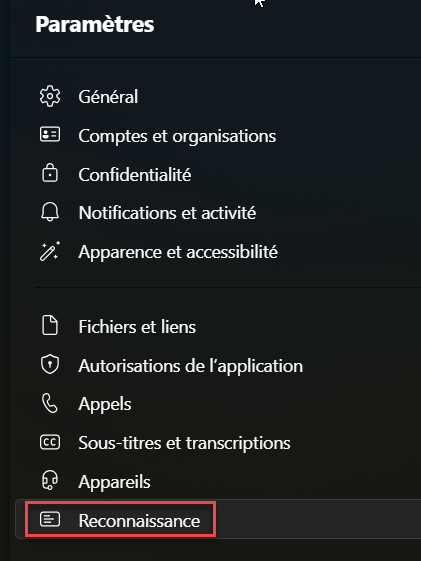
Click on Create a voice profile
The step consists of a quick and secure registration process that involves reading aloud a short paragraph in one of the 25 languages to create your "voice profile", a set of vocal characteristics unique to you.
This voice profile will then be used by the voice isolation model to ensure that only your voice is transmitted through your microphone.
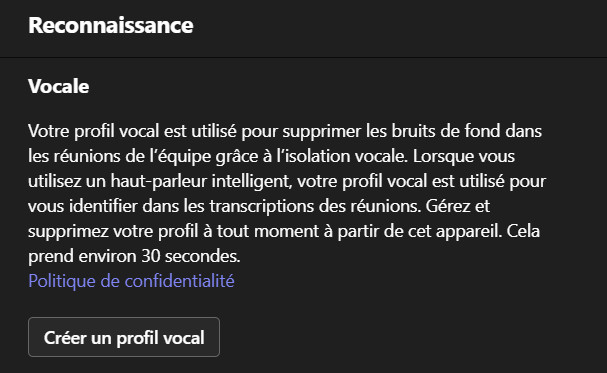
The steps consist of reading a text to record your voice signature as part of the learning phase.
Users can delete their voice profile at any time using the Teams desktop application, even if the enrollment policy was disabled.