








Microsoft has introduced a set of new features in Windows 365. As with other services, here is a summary of the changes and features that Microsoft has introduced during the month.
Device provisioning
- Windows 365 now supports the Italy North and Poland Central datacenters.
Device Management
- Public Preview of Dedicated Mode for Windows 365 Boot. You can now connect to your Windows 365 Cloud PC from the device designated by your company. You will be able to seamlessly connect to your Windows 365 Cloud PC from the Windows 11 sign-in screen using passwordless authentication methods such as Windows Hello for Business. The new Dedicated Mode also comes with a fast account switching experience that allows you to switch profiles effortlessly to sign in, customise the experience with your username and password, display an image on the lock and sign-in screen, remember your username, and more.
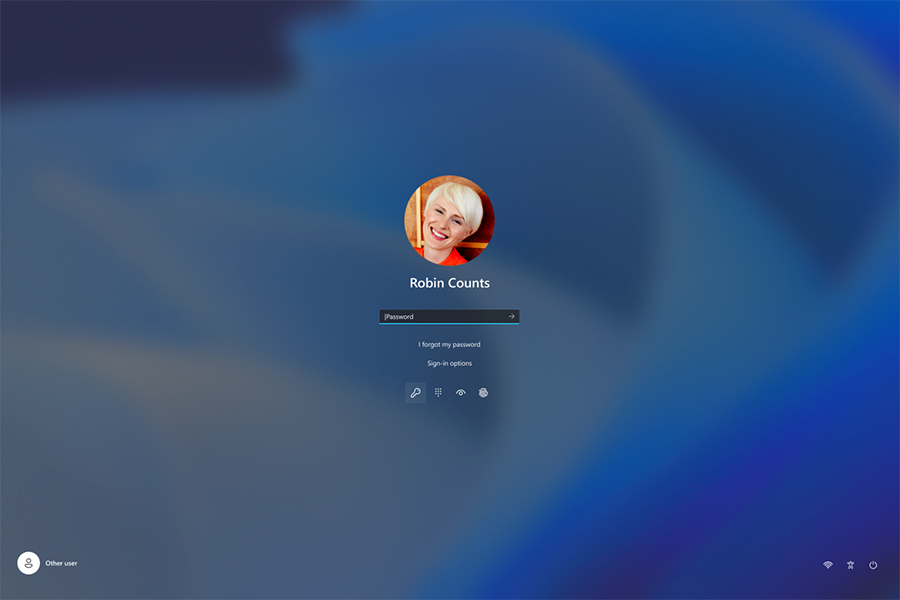
- In the Shared Mode of Windows 365 Boot, you can now customize the sign-in page with the company's branding. This takes place in Intune under Home > Devices > Windows 365 Boot then Personalization in the Settings menu.

User Experience
- In Windows 365 Boot, it is no longer necessary to wait the end of the process Cloud PC sign-in to discover that Windows 365 startup has failed due to network issues or incomplete configuration. The new intelligent logic proactively informs users of the need to resolve network issues or complete the application configuration so that they can connect without issues to their Cloud PC.
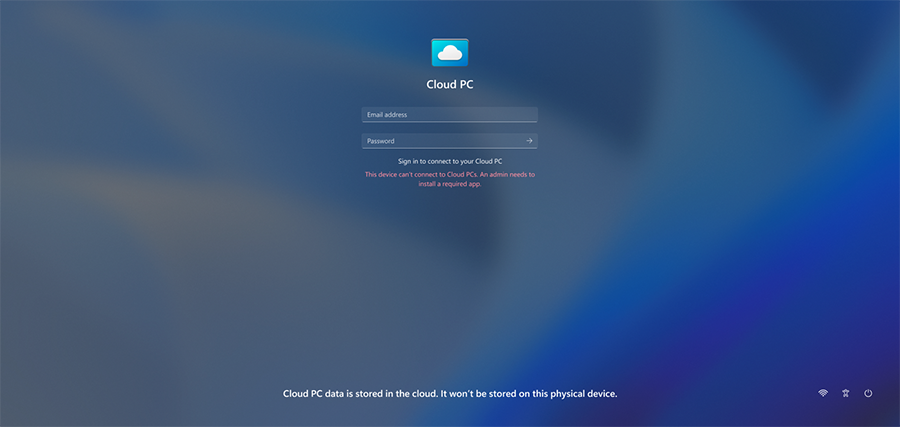
- The user can manage settings of the local PC from the Cloud PC with Windows 365 Boot. It is now easier to access and manage sound, display and other device-specific settings on their local PC.

- In Windows 365 Switch, you can now disconnect from the Cloud PC directly from your local PC. To do this, simply go to Local PC > Task view, right-click on the Cloud PC and select Disconnect. Microsoft has also added tooltips that display network disconnection and user disconnection options in the Cloud PC start menu so that you can differentiate between these features.

- With Windows 365 Switch, you will now see the terms "Cloud PC" and "Local PC" on the desktop indicator when switching from one PC to another.

- The user will now see updates regarding connection status to the Cloud PC and the connection delay indicator while it waits on the login screen. In case of error, the user will be able to copy the correlation ID using the new copy button on the error screen for faster resolution.
- For newly created Cloud PCs, users can now restart or shut down their Cloud PC using the keyboard shortcut CTL+ALT+DEL. This does not apply to Cloud PCs created before 1/31/2024.
Device Security
- Many required FQDNs have been moved to the wildcard FQDN *.infra.windows365.microsoft.com. This move reduces initial configuration requirements and the rate of change of connectivity requirements. For Windows 365 Government, FQDNs have been moved to *.infra.windows365.microsoft.us. To avoid any issues when provisioning new Cloud PCs, you must ensure that .infra.windows365.microsoft.com (.infra.windows365.microsoft.us for Windows 365 Government) is an accessible endpoint in your network's allowlist.
Monitoring and Troubleshooting
- A new alert rule (in Preview) is now available to alert you when Cloud PCs are not available.
More information on: What's new in Windows 365 Enterprise | Microsoft Docs
Read also:
Your Dynamic Snippet will be displayed here... This message is displayed because you did not provided both a filter and a template to use.